
BLOG
How Do You Delete Photos from Your Memory Cards – and Is It Damaging Them
Introduction
Whether you shoot on a DSLR, phone, or drone, everyone eventually asks: ‘Am I damaging my memory card every time I clear space?’ The short answer is no, but how you delete and format does matter.
This guide explains how SD cards store and erase data so you can delete photos without worry. It also shows how to recover erased pictures from an SD card in the event of an accident.
The methods differ slightly depending on the device. You can clear photos inside a camera using a Windows or Mac computer, or through a mobile connection.
Let’s start with how your SD card actually stores and erases data, because that’s the key to understanding what really happens when you hit ‘delete’.

How SD Cards Store and Erase Data

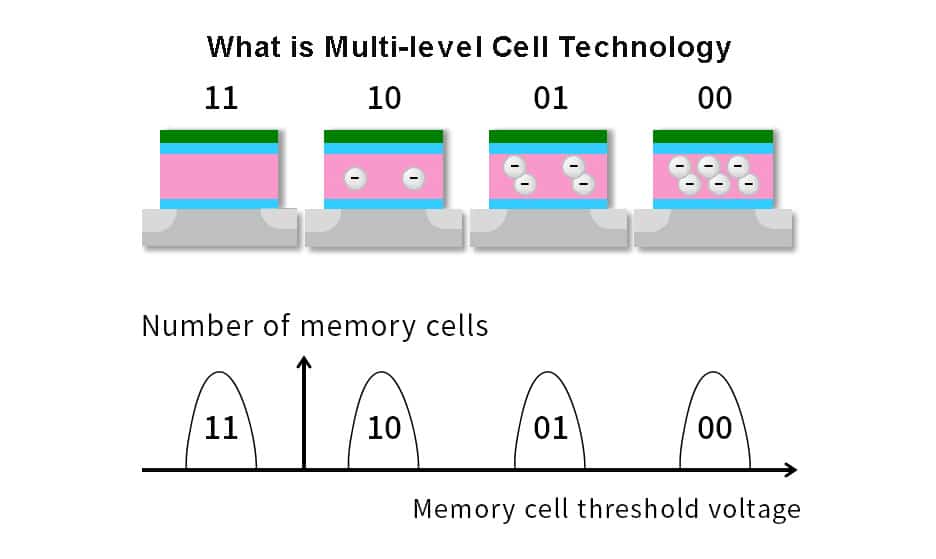
SD cards use flash memory to hold information. In simple terms, the card keeps data in small memory cells. When you save a photo, it fills some of these cells.
Deleting a file does not instantly remove the data. It only erases the pointer in the card’s directory. The photo remains hidden until new data overwrites it. This is why you can often recover erased photos from an SD card with special tools.
Formatting is different. A quick format rewrites the file system and removes directory information, but still leaves the actual data until overwritten. A complete format checks every cell and may overwrite more thoroughly.
Because of this structure, deleted photos are usually recoverable if you stop using the card right away. The ability to recover depends on how much new data has replaced the old information.
Common Ways to Delete Photos from an SD Card
Depending on whether you’re using a camera, computer, or phone, the deletion steps vary slightly.
In-camera Deletion

- Delete a single photo from the preview screen.
- Use the ‘Delete All’ option to remove all images.
- Quick format to refresh the card before a new shoot.
Computer Methods
- Windows: Insert the card, open File Explorer, select the files, and press Delete. For a clean start, right-click the card and choose Format for a quick refresh.
- Mac: Open Finder, drag unwanted files to Trash, and empty it. For a complete reset, use Disk Utility to format the disk.
Mobile or Tablet

- Connect the card to a card reader or use an OTG cable.
- Use the device’s file manager to remove images.
Always eject the card safely after deleting. It prevents data corruption and avoids damage from sudden power loss. Interrupting a write or erase process can cause file errors.
Does Deleting Photos Damage the Memory Card

Many people worry that deleting or formatting a card shortens its life. In reality, regular deletion does not harm the memory cells.
Flash memory has a limit on the number of times each cell can be programmed and erased. Modern cards include wear-leveling technology. It spreads the work across the entire card, so routine deletions have little effect.
Real risks come from improper handling. Removing the card while the camera or computer is still writing data can cause file corruption. Power loss during deletion may also create errors.
To stay safe, always use the device’s eject feature before removing the card. This small step protects both the data and the file system.
Best Practices for Long Card Life
Good habits keep memory cards reliable for years. Follow these tips for better performance:
- Buy high-quality cards and trusted card readers.
- After moving large batches of photos, format the card in-camera rather than deleting thousands of files one by one.
- Store cards in protective cases to avoid moisture, dust, or bending.
- Keep cards away from extreme heat or cold.
- Update camera or computer firmware to maintain full file-system support.
Regular care reduces errors and ensures faster read and write speeds. Simple protective steps prevent the need for costly recovery later.
Recovery: Bringing Back Deleted Photos
Since deletion usually only hides data, recovery is often possible. Quick action improves the chances.
Stop using the card immediately after accidental deletion. Continued shooting or saving new files may overwrite the old images.
Recovery Seps
- Insert the card into a computer.
- Use reliable software such as Recuva, PhotoRec, or Disk Drill.
- Scan the card and preview recoverable files.
- Save recovered photos to a different drive to avoid overwriting.
Recovery is not guaranteed. If new data has replaced the old information, the lost photos may be unrecoverable. Still, many users successfully restore images if they act fast and avoid writing new data to the card.
When to Format vs. Delete
Deleting is fine for regular cleanups, but formatting serves specific purposes.
Quick format resets the file system without checking each cell. Use it when preparing a card for a new shoot.
Full format scans every cell and takes longer. Use it only if the card shows errors or you need a thorough reset. A simple delete is best for removing a few images at a time.
On a Mac, Disk Utility offers both quick and complete format options. Cameras also provide built-in formatting tools. Avoid using repeated low-level formats, as they offer no additional benefit and may cause unnecessary wear.
Action | Best For | Notes |
Delete | A few images at a time | Quick, no card stress |
Quick Format | Reset for a new shoot | Fast, non-destructive |
Full Format | Errors or a deep reset | Slower, rarely needed |
What’s Next for Memory Card Care
Looking ahead, both the cards themselves and recovery options are only getting better. Larger capacities and faster UHS or CFexpress models reduce the need for constant deleting. Photographers can store more files without needing to perform frequent formatting.
Recovery tools are improving as well. Many now include more comprehensive scans and enhanced preview features. At the same time, cloud backup services make it easier to store and protect essential images before they are ever stored on a card.
Regular backups and organized file management remain essential. By combining modern cards with reliable storage habits, accidental loss becomes rare.
Final Words
Deleting or formatting won’t kill your SD card, but sloppy habits will. Safe ejection, occasional formatting, and reliable cards make all the difference. And when accidents happen, recovery tools can save the day.
Don’t gamble with your memories. Invest in high-quality cards and gear from MRT3C so your photos stay safe, recoverable, and ready whenever you need them.
Related posts:
 How to choose camera accessories and memory cards?
 SD Card Types Explained: SD vs SDHC vs SDXC vs SDUC (2026 Buying Guide)
 Why Does My SD Card Not Work?
 Which is better a CF card or an SD card? What is the difference between them?
 as of January 2018, there were in total 163 chip companies in Israel
 USB Hub interface in the market is usually 4 or 7. It is easy to understand 4 interfaces
 Bulk SD Cards
 CF Card
 USB Flash Drive
 SSD NAND
 Adapter and Accessory